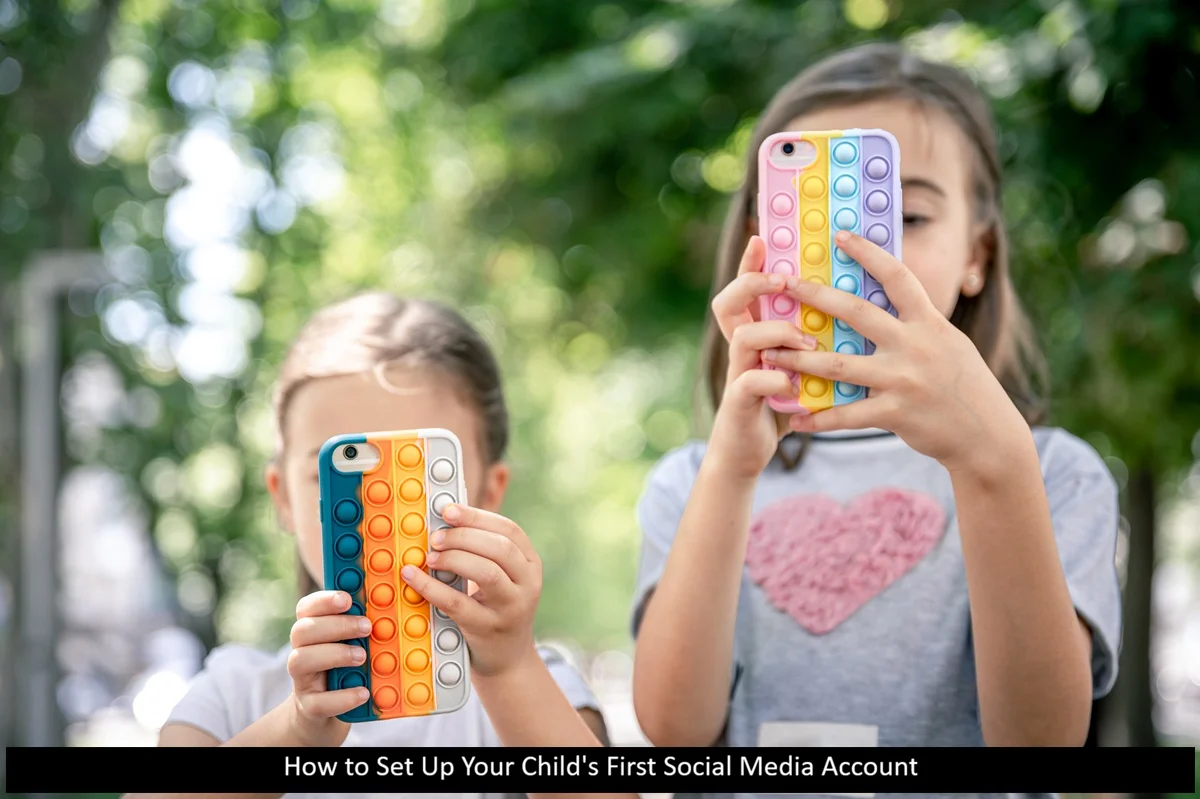
If you’re searching “how to set up my child’s first social media account,” you’re already ahead of most parents. Setting up your child’s first social media profile isn’t just about creating a username—it’s about establishing digital safety foundations that will protect them for years. In this guide, we’ll walk through exactly how to set up accounts safely, from choosing the right platform to enabling every privacy setting you need.
Quick Answer: To safely set up your child’s first social media account: 1) Choose age-appropriate platforms, 2) Use a parent’s email for registration, 3) Enable maximum privacy settings, 4) Set up parental controls, 5) Create a “social media rules” contract together.
Step 1: Is Your Child Really Ready? (Age & Maturity Check)
Minimum Age Requirements (2025 Updates)
- Instagram, TikTok, Snapchat: 13+ (COPPA law requirement)
- YouTube: 13+ for personal account (YouTube Kids available under 13)
- Facebook: 13+
- Discord: 13+
- WhatsApp: 16+ in most regions
Warning: 40% of children ages 8-12 already use social media despite age restrictions. If setting up an account before age 13, you must use platform-specific parental supervision tools.
Maturity Checklist
Your child is ready for their first social media account if they can:
- Handle mild criticism without collapsing
- Understand what “personal information” means
- Follow household rules consistently
- Come to you with problems (not hide them)
- Balance screen time with other activities
Step 2: Choosing the Right First Platform (By Age Group)
Best First Social Media Accounts by Age:
| Age | Recommended Platform | Why It’s Safer |
|---|---|---|
| 10-12 | YouTube Kids (supervised) | Content filtered, time limits, no public comments |
| 13-14 | Instagram with supervision | Strong privacy controls, “Close Friends” feature |
| 13-14 | TikTok Family Pairing | Direct parental controls, restricted content mode |
| 15+ | Platform of their choice | With full safety conversation and monitoring agreement |
Platforms to Avoid as First Accounts:
- Twitter/X: Unfiltered content, difficult to moderate
- Anonymous apps (Whisper, YikYak): High bullying risk
- Discord servers with strangers: Difficult to monitor conversations
- Dating apps: Clearly inappropriate for first accounts
Step 3: The Setup Process (Screen-by-Screen Guide)
Before You Create the Account:
- Use YOUR email address (not your child’s)
- Create a unique password you’ll both have access to
- Prepare a profile photo that doesn’t identify their school or location
- Brainstorm usernames that don’t include real names, ages, or locations
Instagram Setup Walkthrough:
- Download from official app store (not third-party sites)
- Select “Create New Account”
- Enter YOUR email (create one specifically for this if needed)
- Create username:
janesoccerfannotjanesmith12chicago - Skip connecting contacts (privacy red flag)
- Complete profile with: No last name, no phone number, no specific location
Critical Privacy Settings to Enable IMMEDIATELY:
Instagram (Settings):
- Private Account: ON (non-followers can’t see posts)
- Activity Status: OFF (hides when online)
- Story Sharing: “Share to Close Friends Only”
- Comments: Filter for “Hide Offensive Comments”
- Messages: “Allow Messages from Following Only”
- Tagging: “Manually Approve Tags”
- Sensitive Content Control: “Less”
TikTok Family Pairing Setup:
- Parent downloads TikTok, creates account
- Child downloads TikTok
- In parent’s settings: Family Pairing → Connect to teen’s account
- Parent can now control:
- Screen time limits
- Direct messages (disable or limit)
- Restricted content mode
- Search history viewing
Step 4: Parental Controls & Monitoring Tools
Built-in Platform Controls:
- Instagram Supervision: Request in-app, see child’s time spent, set limits
- TikTok Family Pairing: As above
- Snapchat Family Center: See friends list, report conversations
- YouTube Supervised Experience: Filter content, disable comments
Third-Party Apps Worth Considering:
- Bark: Monitors for dangers across platforms
- Google Family Link: Best for Android devices
- Apple Screen Time: Best for Apple ecosystem
- Qustodio: Comprehensive time and content controls
Important: Always tell your child what you’re monitoring. Secret monitoring destroys trust.
Step 5: The Essential “First Account” Conversations
Must-Have Rules to Establish Together:
- The Password Rule: “I have the password until you’re 15”
- The Friend Rule: “Only people you know in real life”
- The Location Rule: “Never post where you are RIGHT NOW”
- The Screenshot Rule: “Assume anything you post can be saved”
- The Reporting Rule: “Tell me immediately if anything feels weird”
Create a Social Media Agreement:
Created a free printable Social Media Contract that covers:
- Daily time limits
- Posting rules
- Consequences for rule-breaking
- Checking-in schedule
Step 6: Ongoing Maintenance & Check-ins
Weekly Check-in Questions:
- “Who did you connect with this week?”
- “What was the funniest thing you saw?”
- “Did anything make you uncomfortable?”
- “Can we look at your privacy settings together?”
Monthly Security Review:
- Check follower/following lists together
- Review tagged photos
- Update passwords
- Check privacy settings (platforms update frequently!)
Red Flags That Require Immediate Action:
- Suddenly clearing search history
- Creating secret accounts
- Hiding screen when you walk by
- Emotional changes after social media use
Step 7: What to Do If Things Go Wrong
Common First-Month Issues & Solutions:
Problem: “My child accepted a follower they don’t know”
Solution: Together, remove follower, set account to private, review “friends only” rule
Problem: “They posted a photo with school uniform visible”
Solution: Delete immediately, discuss identifiable information, create “post approval” rule
Problem: “They’re spending 4+ hours daily”
Solution: Enable platform time limits, create device-free zones/times
Free Download: Social Media Setup Checklist
[DOWNLOAD: Ultimate Social Media Safety Checklist]
- Pre-setup questions to ask
- Platform comparison chart
- Privacy settings checklist for all major platforms
- Conversation starters about online safety
- Emergency contact sheet for reporting issues
Frequently Asked Questions (FAQs)
A: YouTube Kids with supervised access is the safest for under-13s. For 13+, Instagram with strict privacy settings and parental supervision enabled.
A: Use first name only or a nickname. Never include last name, middle name, or location in usernames or profiles.
A: Use platform supervision features (they notify your child) and have weekly check-ins. Transparency builds trust better than secret monitoring.
A: Most experts recommend 15-16, when they’ve demonstrated responsible use for 2+ years and understand digital safety deeply.
A: Don’t panic. Say: “I understand why you wanted to join. Let’s set it up safely together.” Then follow this guide’s steps together.
Conclusion: Your Action Plan
Setting up your child’s first social media account doesn’t have to be scary. By following this guide:
- Start with conversation about responsibility
- Choose age-appropriate platforms with good parental controls
- Enable every privacy setting during setup
- Use supervision tools transparently
- Maintain weekly check-ins
The goal isn’t to prevent social media use—it’s to teach responsible digital citizenship from their very first post.
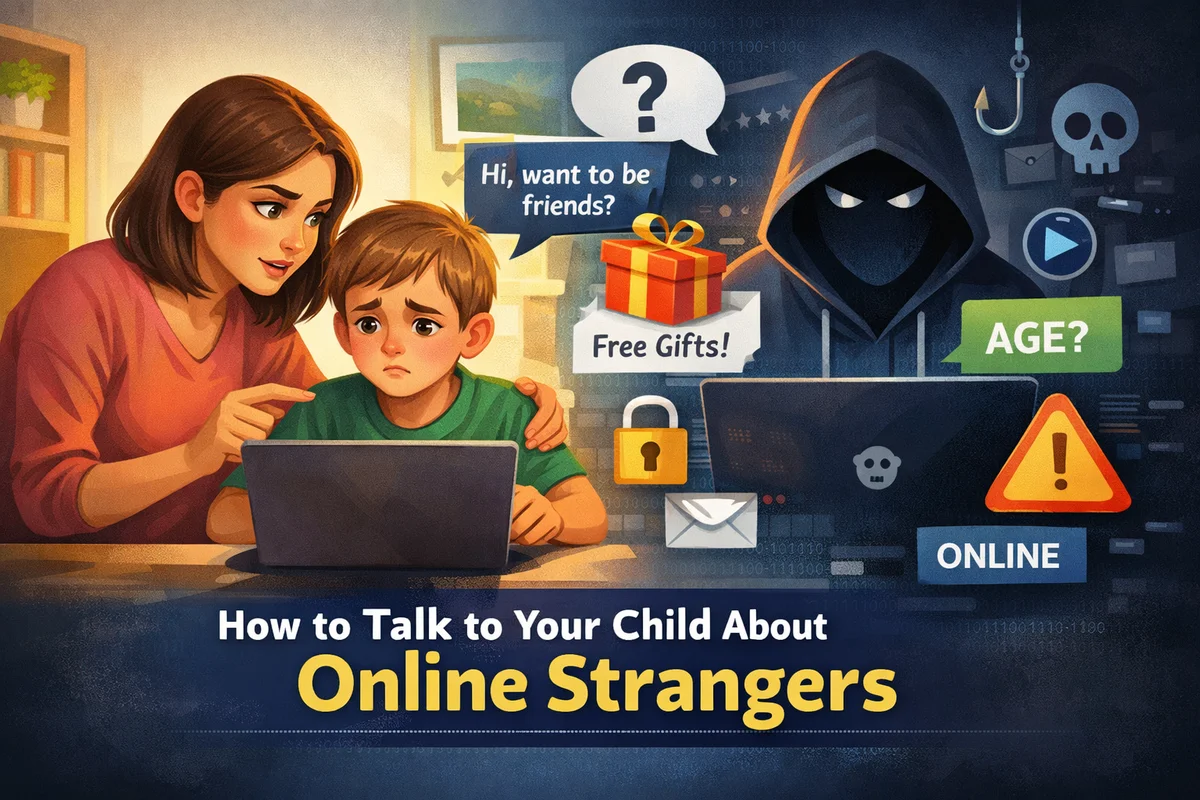
Next Step: Ready for the next conversation? Read our guide on How to Talk to Your Child About Online Strangers to prepare for the next phase of digital safety.